Google Search Console Crawl Errors
Learn how to diagnose and fix Google Search Console crawl and indexing errors, from 5xx and soft 404s to canonical conflicts, and protect GEO visibility.

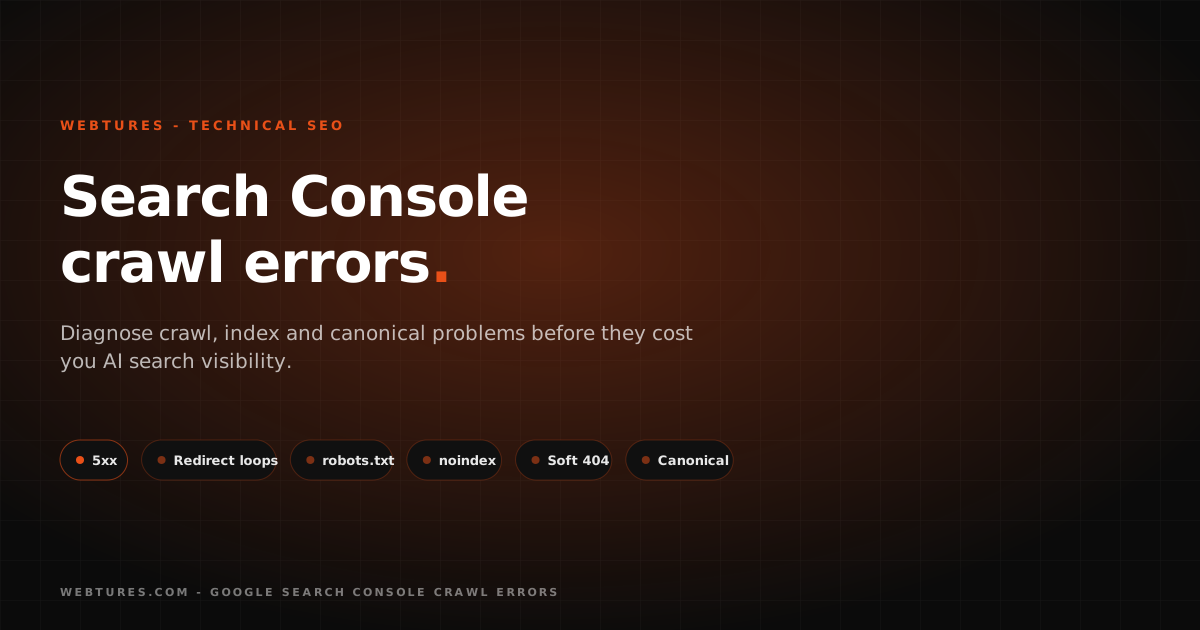

Google Search Console is one of the essential tools for analyzing how Google crawls your site, how it gets indexed, which queries it appears for, and which technical issues might be costing you visibility. From a GEO perspective, Search Console should not be used for performance tracking alone; it should also verify that your pages are accessible, understandable, indexable, and usable as sources by AI Search systems.
The crawl, indexing, redirect, robots.txt, noindex, canonical, 4xx, and 5xx errors surfaced in Search Console should never be treated as mere technical warnings. These issues can prevent Googlebot from reading important pages, blur which URL is the true source, send users to broken pages, and weaken the chances of your brand being treated as a trusted source by AI-powered answer systems.
In this guide we examine the crawl and indexing issues most commonly seen in Google Search Console, why they occur, and how to handle them with GEO in mind.
Why does Google Search Console matter for GEO?
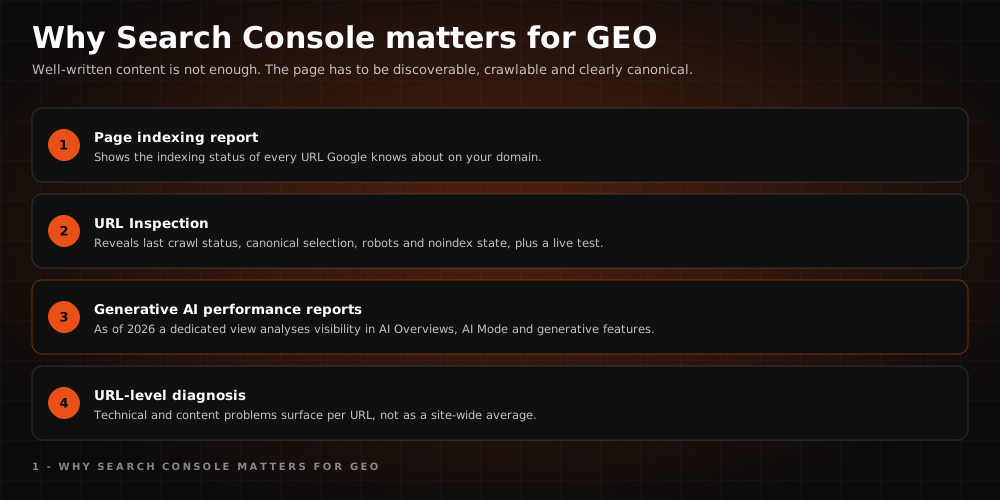
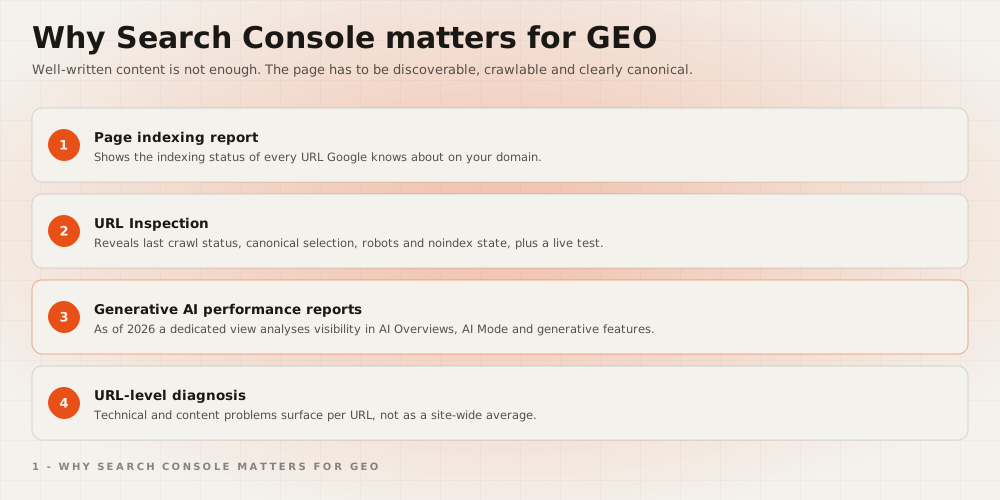
For content to succeed in GEO, being well written is not enough. The page must be discoverable and crawlable by Google, carry the right canonical signal, be supported by structured data, load fast, and answer user intent clearly. Search Console lets you see these technical and content-level problems at the URL level.
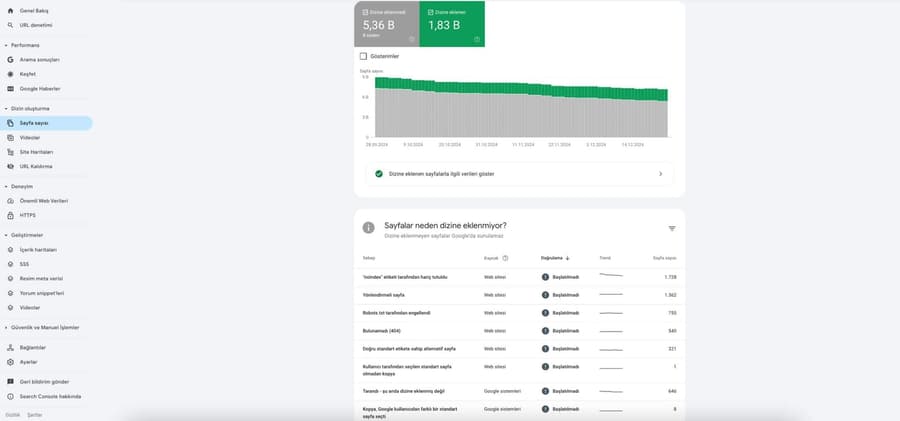
Search Console's Page indexing report shows the indexing status of every URL Google knows about. The URL Inspection tool helps you examine how Google sees a specific page: its last crawl status, canonical selection, robots/noindex state, and live test result. As of 2026, generative AI performance reports have also begun to analyze visibility in AI Overviews, AI Mode, and Google's generative AI features as a separate view.
Server error 5xx
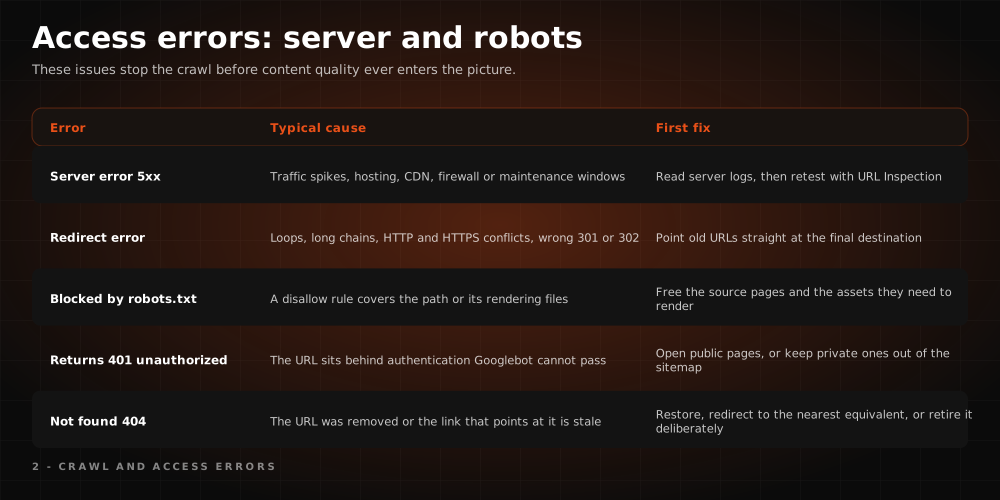
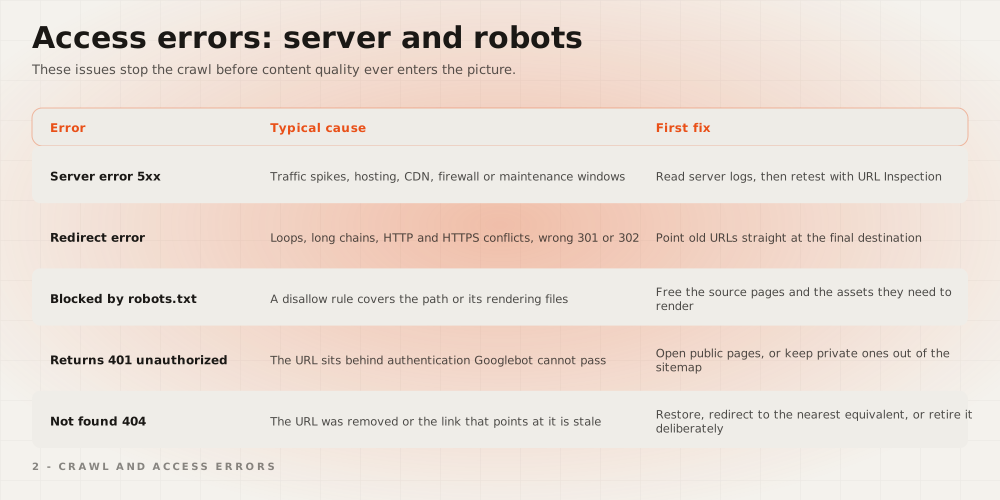
5xx server errors occur when Googlebot or users request a page and the server fails to return a successful response. This can leave important pages uncrawled and weaken their potential to be used as sources.
Causes:
- Traffic spikes: The server may lack the capacity to handle heavy request volumes.
- Server misconfiguration: Hosting, CDN, firewall, or cache settings may be malfunctioning.
- Maintenance windows: Googlebot may receive failed responses during updates or temporary outages.
- Third-party service issues: A CDN, WAF, or security layer may be blocking access.
How to fix it:
- Review server logs to identify which URL, time, and bot request triggered the error.
- Check hosting, CDN, cache, and firewall settings.
- Prevent prolonged 5xx responses on critical pages.
- During maintenance, manage downtime with the correct status code and duration where needed.
- Once resolved, run a live test with URL Inspection in Search Console.
From a GEO standpoint, 5xx errors can make critical pages unreachable for AI Search systems. Core source pages, category pages, service pages, and high-value content should therefore be monitored regularly.
Redirect error
A redirect error occurs when faulty redirect rules prevent a URL from reaching its correct destination. Redirect loops, long redirect chains, HTTP/HTTPS conflicts, and incorrect 301/302 usage are the main causes.
Causes:
- Infinite loop: The URL keeps returning to itself or to the same redirect chain.
- Wrong target: An old URL redirects to an irrelevant page.
- HTTP/HTTPS mismatch: Rules are inconsistent across protocol transitions.
- Chained redirects: The URL passes through multiple intermediate addresses before reaching its destination.
How to fix it:
- Analyze redirect chains with a crawler or server logs.
- Redirect old URLs directly to the most relevant new URL wherever possible.
- Use 301 for permanent and 302 for temporary redirects, and use them correctly.
- Keep target URLs consistent across canonicals, sitemaps, and internal links.
- Validate the broken URLs in Search Console and retest after fixing.
A correct redirect structure ensures users and crawlers land on the same source URL. This matters for GEO too, because it clarifies which page AI-powered answer systems should reference.
URL blocked by robots.txt
A URL blocked by robots.txt means Googlebot is not permitted to crawl the page. The robots.txt file manages crawl traffic; on its own it is not the right method for definitively removing a page from Google results. If a page should not appear in results, methods such as noindex or access control should be considered instead.
Causes:
- Incorrect Disallow rule: Important pages, images, CSS, or JavaScript files may have been blocked by accident.
- Migration mistakes: A blocking rule used during staging or maintenance may have been left in place after launch.
- Dynamic URL management: Filter, search, or parameter URLs may have been blocked with the wrong scope.
- Privacy misconception: Content that should stay private may have been "protected" with robots.txt.
How to fix it:
- Check the User-agent, Allow, Disallow, and Sitemap rules in your robots.txt file.
- Use the URL Inspection tool to test whether Google can crawl the page live.
- Make sure important source pages, images, and files required for rendering are not blocked.
- For private content, use noindex, password protection, or access control instead of robots.txt.
From a GEO standpoint, blocking important pages with robots.txt makes them hard to use as sources even when the content is strong. Robots.txt checks should therefore be handled alongside content visibility and AI crawler access.
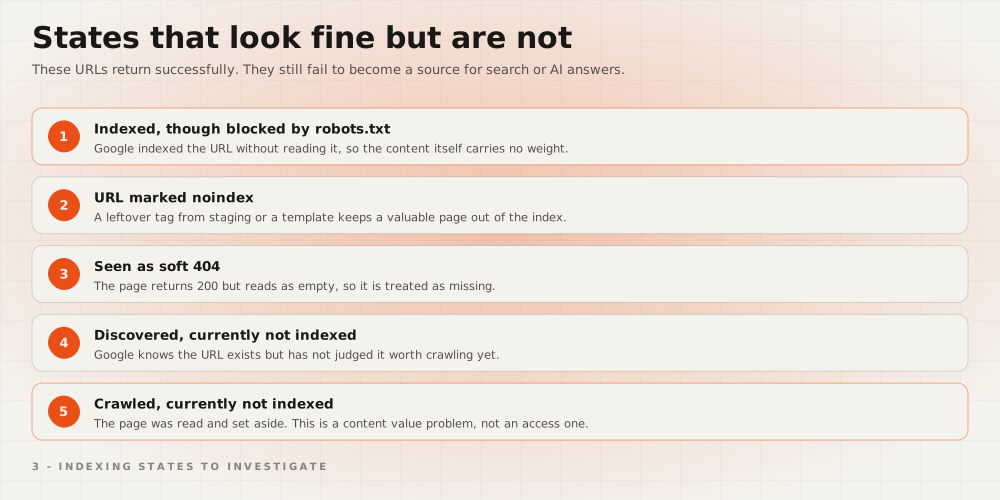
Indexed, though blocked by robots.txt
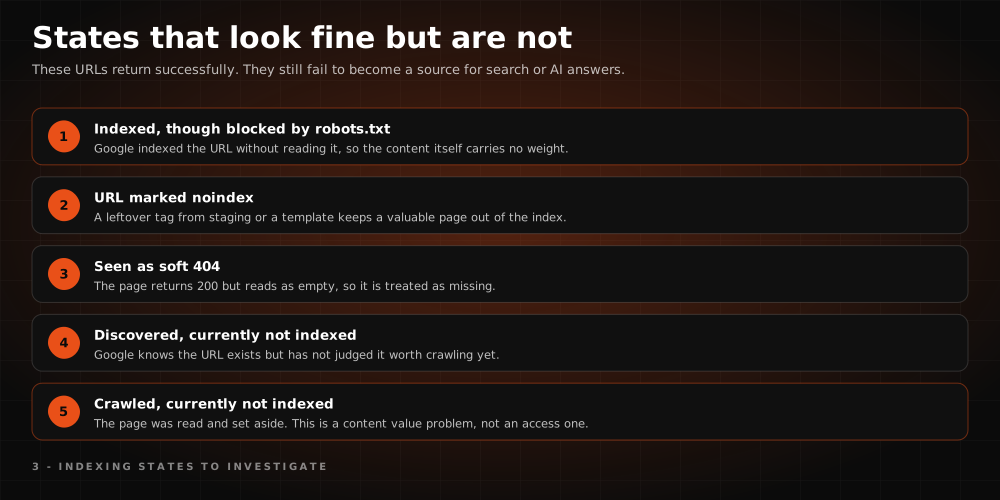
This warning means Google knows a crawl-blocked URL through external links, sitemap entries, or earlier discovery signals, and can show it in results with limited information. Robots.txt blocks crawling; it does not guarantee exclusion from the index.
How to fix it:
- If the page truly should not appear, remove the robots.txt block so the noindex signal can be seen.
- Use password protection or access control for sensitive content.
- In urgent cases, use the Search Console Removals tool for temporary removal from results.
- For a permanent fix, apply the correct technical signal: 404, 410, noindex, or access restriction.
URL marked noindex
Noindex is a meta tag or HTTP response header method used to keep a page out of Google results. If noindex is added to an important page by mistake, that page will not be indexed and loses its potential to serve as a source for AI Search.
Causes:
- A staging or test setting left in place when the page went live.
- A CMS, plugin, or theme automatically adding noindex to the page.
- Noindex being sent unnoticed via an HTTP header.
- A robots.txt block preventing Google from seeing the noindex signal.
How to fix it:
- Check the HTML source and the HTTP header output for noindex.
- Verify what Google sees with the Search Console URL Inspection tool.
- Remove any incorrect noindex on critical pages.
- Make sure the page is not blocked by robots.txt so Google can see the noindex signal.
- Update the sitemap and internal link structure to support important pages.
URL seen as soft 404
A soft 404 occurs when a page technically returns a 200 success response yet offers no meaningful content, behaving like a page that could not be found. Google may treat such pages as worthless and exclude them from the index.
Causes:
- Empty, extremely thin, or auto-generated content.
- Out-of-stock products turning into empty pages.
- Removed content still returning a 200 response.
- Irrelevant redirects, or weak content served in place of a proper error page.
How to fix it:
- If the page carries value, strengthen the content and answer user intent clearly.
- If the page no longer exists, return a 404 or 410 status code.
- If a relevant alternative exists, redirect to the right page.
- On product or category pages, offer users genuine alternatives.
From a GEO standpoint, soft 404 pages erode source trust. AI Search systems cannot treat contentless or ambiguous pages as strong references.
URL returns 401 unauthorized
A 401 error indicates that the URL requires authentication to be viewed. This is normal for private areas, but when it appears on pages meant to be public it blocks both Googlebot and users.
How to fix it:
- Decide whether the page should genuinely be private or publicly accessible.
- Check critical content for unnecessary login requirements or firewall blocks.
- Review server, CDN, and WAF rules for settings that wrongly block Googlebot.
- Make sure private content is not included in the sitemap.
URL not found 404
A 404 error indicates the requested URL could not be found. Not every 404 is a problem; it is normal for pages that were genuinely removed and carry no value. But if important content, pages with backlinks, or product and service URLs return 404, user experience and source visibility can suffer.
Causes:
- Content taken offline.
- Mistyped internal or external links.
- Missing redirects after a site migration.
- Deleted product, category, or campaign pages.
How to fix it:
- Assess the 404 URL's value in traffic, backlinks, mentions, and user intent.
- Apply a 301 redirect if a relevant alternative exists.
- If the topic is valuable, create fresh, up-to-date content.
- Keep the 404 or 410 status for content that was genuinely removed.
- Clean URLs that no longer exist out of the sitemap and internal links.
Blocked due to other 4xx issue
4xx errors represent client-side access problems. Status codes such as 403 or 405 can prevent Googlebot from reaching the page.
How to fix it:
- Examine the error type per URL in Search Console.
- Check server permissions, the firewall, CDN rules, and HTTP method restrictions.
- Make sure important source pages are public and crawlable.
- Fix malformed URL formats, parameters, and broken links.
From a GEO standpoint, 4xx errors can prevent answer engines from treating important pages as trusted sources.
Discovered, currently not indexed
This status means Google knows the URL but has not yet crawled or indexed it. It is usually tied to a weak priority signal, insufficient internal link support, or Google allocating its crawl resources to pages it considers more important.
How to fix it:
- Make sure the page answers user intent clearly.
- Support the page through relevant category, hub, breadcrumb, and internal link structures.
- Keep only high-quality URLs you want indexed in the sitemap.
- Request indexing for important URLs via the URL Inspection tool.
- Check that the page does not overlap with similar or weak content.
Crawled, currently not indexed
This warning means Google crawled the page but chose not to index it. The cause may not be purely technical; content quality, originality, user value, the canonical signal, and the page's overall source value should be evaluated together.
Causes:
- The page is not sufficiently original or comprehensive.
- The topic is already covered by a stronger URL.
- Inconsistencies exist across canonical, robots, structured data, or internal link signals.
- The page does not answer the user's question clearly and directly.
How to fix it:
- Strengthen the content with clearer definitions, examples, current information, and answer blocks.
- Merge similar pages to establish a single main source URL.
- Check canonical, sitemap, internal link, and structured data signals.
- Clarify which prompt or user intent the page is meant to answer.
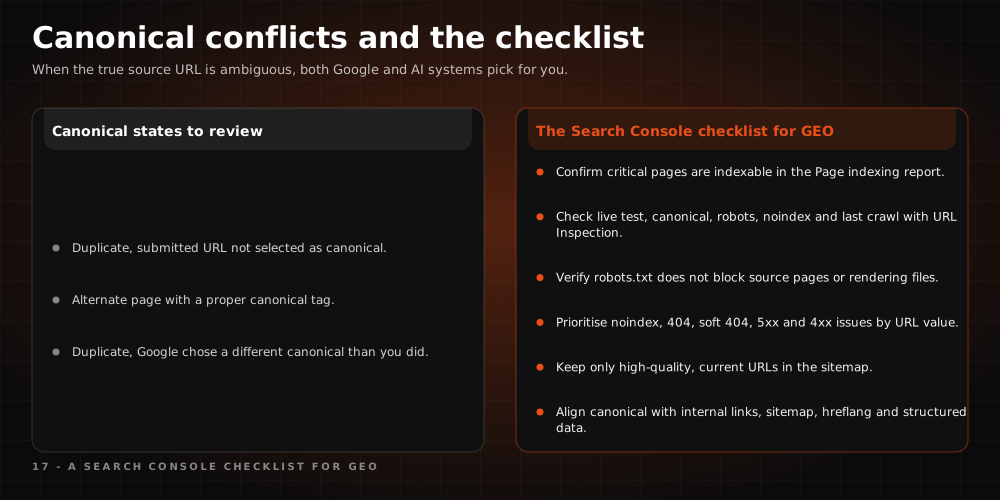
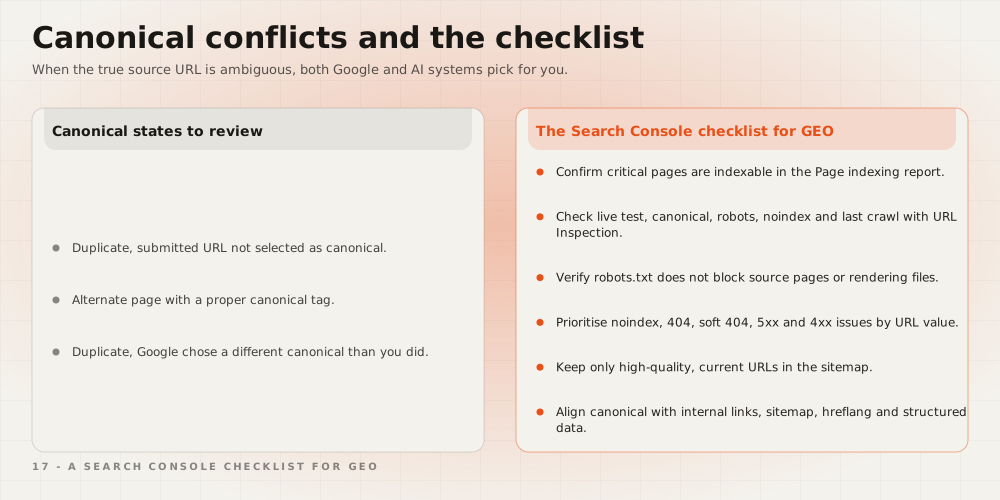
Duplicate, submitted URL not selected as canonical
This error means Google chose a different URL as canonical instead of the one you submitted. It can blur which page is the true source and scatter content signals across multiple URLs.
Causes:
- The same content published on multiple URLs.
- Incorrect or inconsistent canonical tags.
- Parameterized URLs colliding with the main page.
- Sitemap and internal links pointing to different URLs.
How to fix it:
- Decide which URL is the true source.
- Align canonical tags to that URL.
- Keep sitemap, internal link, hreflang, and structured data signals consistent on the same URL.
- Merge or remove unnecessary duplicate content.
Alternate page with proper canonical tag
This status means Google sees the URL as an alternate and accepts a different URL as canonical. With deliberate canonical usage this is not a problem; but if an important page ends up as an alternate by mistake, its source visibility can shrink.
How to fix it:
- Check whether the alternate page genuinely should stay tied to the canonical URL.
- Make sure important pages are not pointing at another URL through an incorrect canonical.
- Simplify unnecessary alternate URLs.
- Support the main source page with internal links, the sitemap, and content architecture.
Duplicate, Google chose different canonical than user
This error means Google selected a different URL as canonical instead of the one you declared. It usually stems from content similarity, internal link inconsistency, sitemap conflicts, or Google judging the other URL stronger for users.
How to fix it:
- Compare the URL Google chose with the one you declared.
- Strengthen the main source page's content value, originality, and entity clarity.
- Point internal links, the sitemap, and the canonical tag at the same target.
- Simplify parameterized, filtered, or duplicate URLs.
- Where needed, consolidate similar content into a single strong page.
How should you read the generative AI performance reports?
Google's generative AI performance reports help you analyze how your site performs in AI Overviews, AI Mode, and Google's generative AI features through a dedicated view. This data continues to appear in the general performance reports, but the dedicated view makes generative AI visibility much easier to examine.
For GEO, these reports show which pages are gaining visibility in AI-powered results, which queries they have source potential for, and which content needs further technical or editorial improvement.
A Search Console checklist for GEO
- Confirm in the Page indexing report that critical pages are indexable.
- Use URL Inspection to check the live test, canonical, robots, noindex, and last crawl status.
- Verify that robots.txt is not blocking important source pages or rendering files.
- Prioritize incorrect noindex, 404, soft 404, 5xx, and 4xx issues by URL value.
- Keep only high-quality, current URLs you want indexed in the sitemap.
- Align canonical signals with internal links, the sitemap, hreflang, and structured data.
- Track the generative AI performance reports regularly for AI Search visibility.
- Evaluate technical issues together with content quality, entity clarity, and answerability checks.
In short, the crawl and indexing errors in Google Search Console are more than technical report labels. These warnings directly affect your site's accessibility, source URL clarity, content quality, user experience, and how well AI Search systems can understand it. When regular Search Console checks are combined with server log analysis, content quality reviews, and GEO-focused source evaluation, a website becomes a more trustworthy, more readable, and altogether stronger digital asset.