How to Remove a URL From Google
Learn how to remove a URL from Google using 4 methods: robots.txt, the URL removal tool, deleting page content, and canonical tags, step by step.

How to remove a URL from Google
In this post we cover how to remove a URL from Google, step by step. Let's get started.
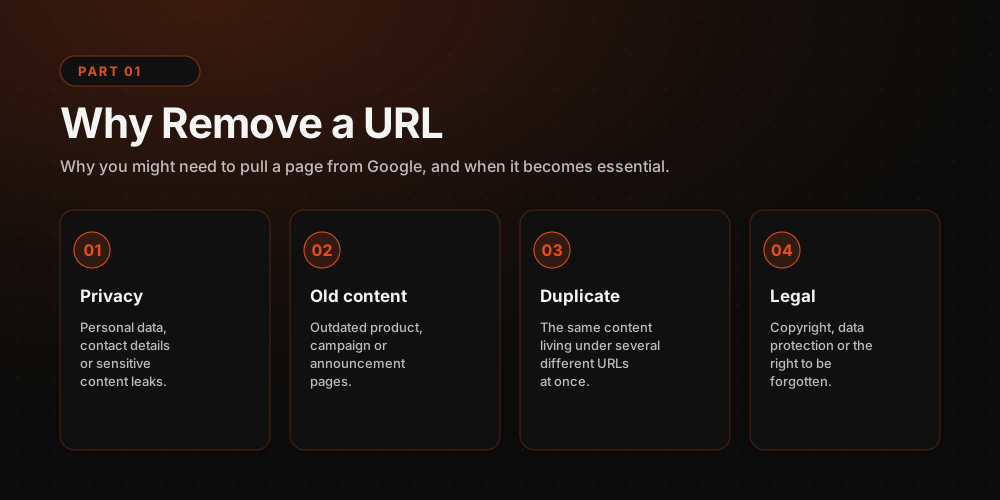
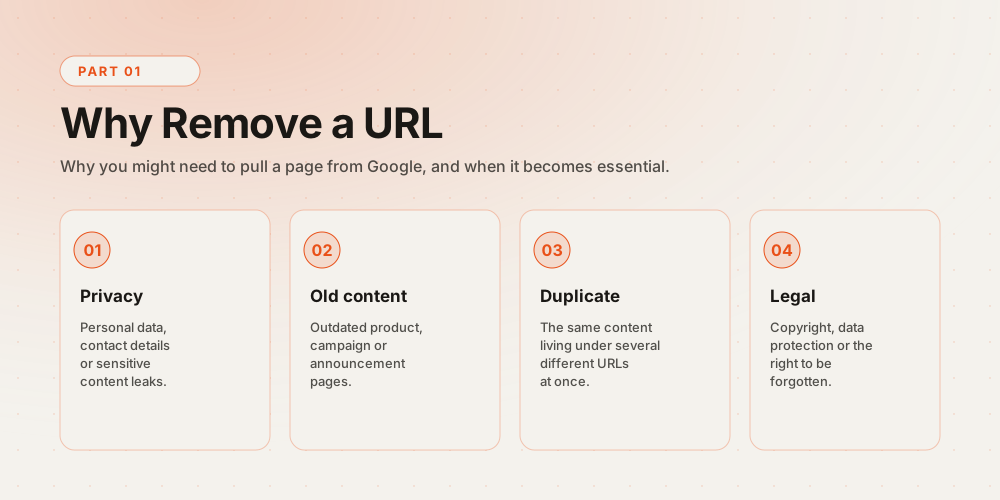
Before learning how to remove a URL from Google, you first need to analyze why you are removing it in the first place. Perhaps there are duplicate copies of the same page, or you simply do not want Googlebot to crawl the URL you plan to remove.
Once you have analyzed and identified the reason for the removal, you can choose the removal method that best fits your case.
This post covers 4 different URL removal methods. Let's begin.
First, to check whether the URL you want to remove has actually been indexed by Google, run a search query in the format "site:www.example.com/example-url". This query tells you whether the URL is genuinely indexed and visible in Google, or whether the content was never indexed and Google simply does not see it. For a more reliable check, you can also use Google Search Console.
-
How to remove a URL from Google using the robots.txt file?
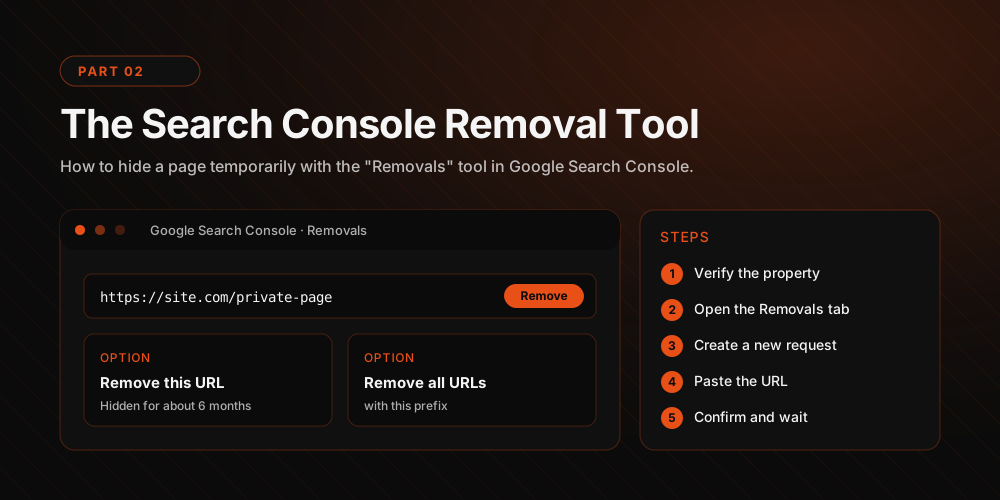
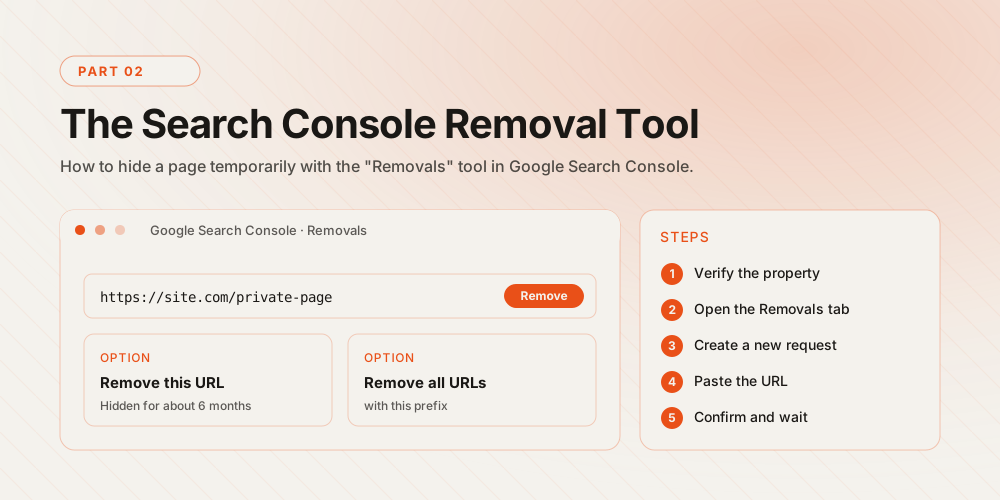
Google's crawlers read your website through the robots.txt file. In this file you can specify which pages Google should not crawl and which page addresses should not be followed. Using the "noindex" tag, the URL you want to remove from your site is closed off to Google's crawls.
Example "noindex" usage.
<meta name=”robots” conten=”noindex”>
2. How to remove a URL using the Google URL removal tool?
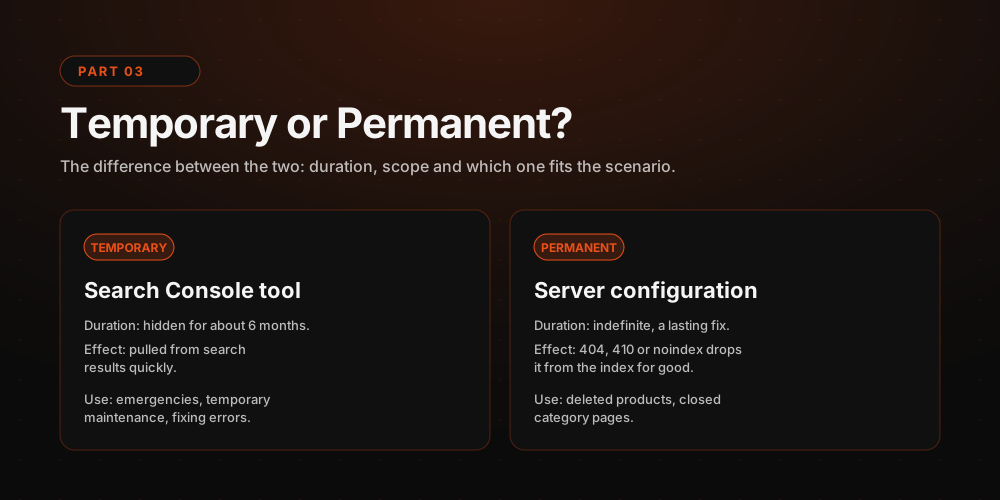
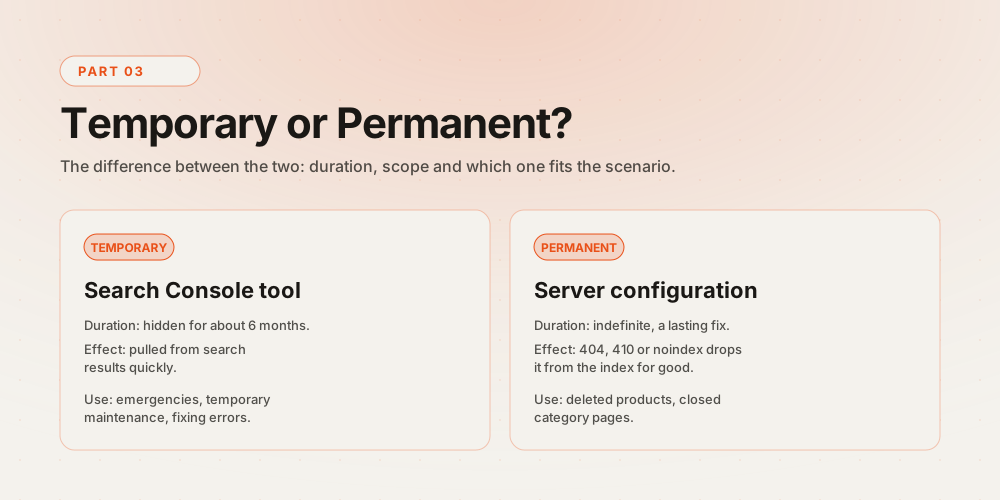
You can also remove a page from Google's index using the Google URL Removal Tool. The tool can be used in two different ways.
- The first applies when the website does not belong to you and the listed page shows outdated content. You can access the tool here.
How is it done?
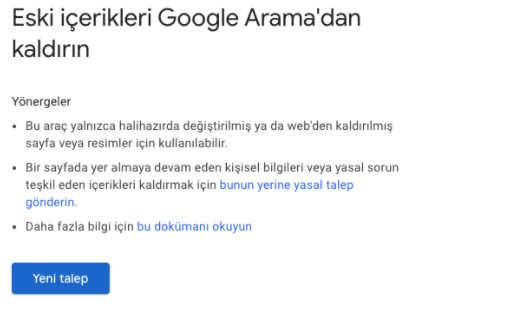
Step 1: After clicking the link, this screen will appear. Click New Request to continue.
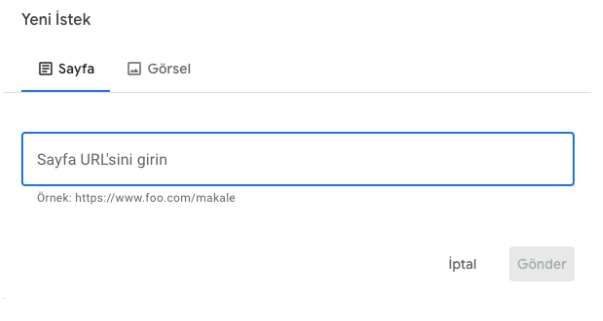
Step 2: If the content you want to remove is a web page, use the "Page" tab; if it is an image, use the "Image" tab.
In the page tab, after entering the page URL, you are asked to enter a word that appears in the new content but not in the old one. This step verifies that the content has actually been updated.
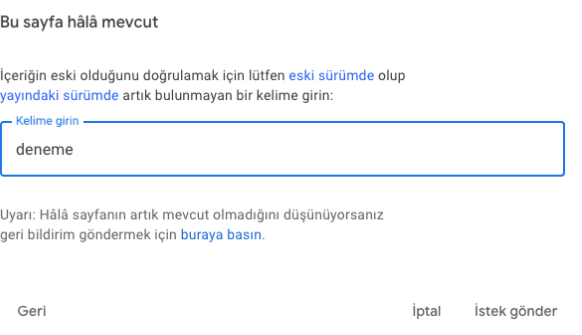
After entering the differing word, click the submit request button and the process is complete.

Submitted requests appear at the bottom of the page, where you can track their status.
For image removal,
Add the URL of the image you want removed along with the URL of the page containing it. Once done, click the submit button to send the request.
The requests you have submitted appear in the removal requests section.
Request statuses and what they mean,
- Pending: The request has been submitted. Processing may take a few days.
- Approved: The update has started taking effect in search results.
- Request denied: The request was denied for one of these reasons.
- Expired: The request was approved, but it has since expired.
- Cancelled: The request was cancelled by the requesting user or by the site owner of the property.
2. Removing a URL from a site you own via Search Console.
First, sign in to the Google Search Console removals tool. Select the website you own from the menu on the left.
Then click the URL removal tab. A screen like this appears.
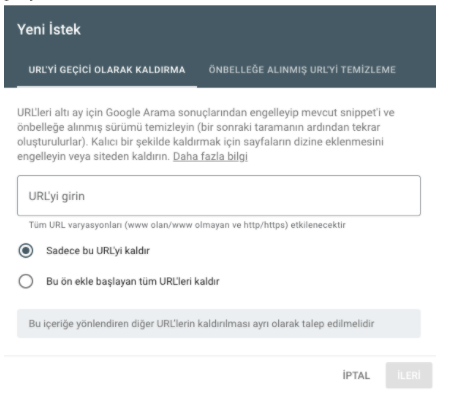
If you select "Remove this URL only", only the URL you entered is removed. If you select "Remove all URLs with this prefix", every URL under that folder, such as ".../folder/xx.html", is removed.
Then click Next and follow the prompts to complete the removal.
3. How to remove a URL from Google by deleting the page content?
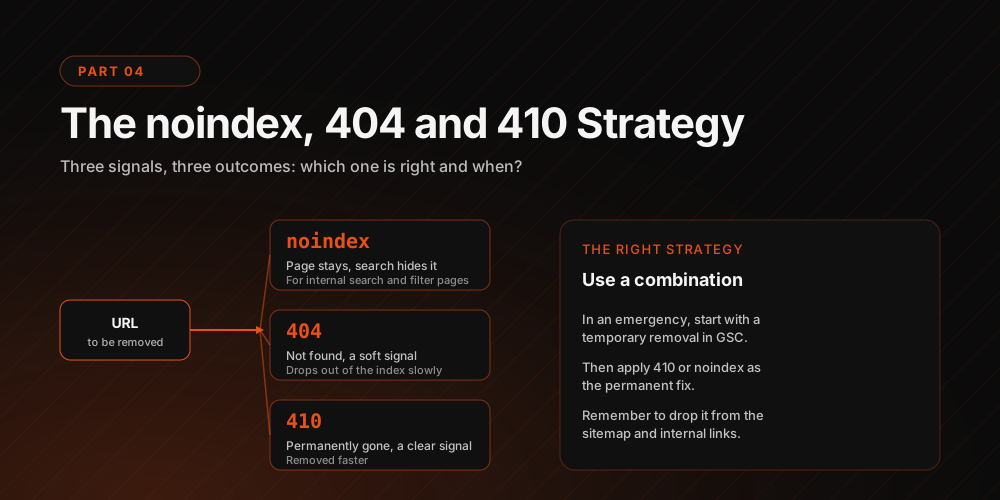
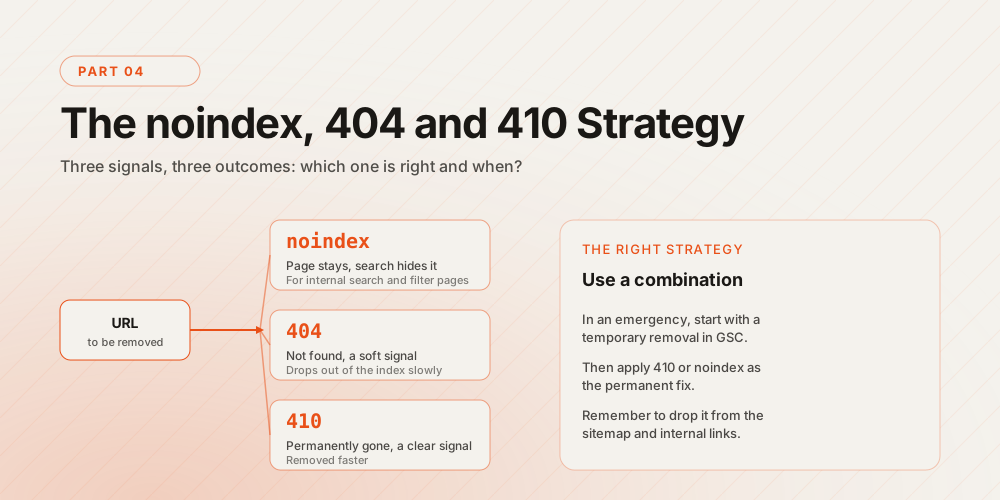
After deleting a page on your website, you can use a "4XX" response to remove the page from Google's search index.
4. How to remove a URL from Google using the canonical tag?
The canonical tag is a helper tag that tells Google's crawlers which URL should be treated as the primary version among similar web pages.
Thanks to this tag, websites avoid being flagged as duplicate or spam pages.
An example usage is <link rel=”canonical” href=”https://example.com”/>. This way, you can point search results to the page you actually want shown.