What Is Google Forms (Google Surveys)?
Learn how to build free surveys with Google Forms: setup, question types, customization, and sharing, plus how it differs from the discontinued Google Surveys.


Google Surveys is gone. Google's paid market research product, Google Surveys, was retired in 2022 and no direct replacement was released. The tool people are actually looking for when they search for a Google survey today is Google Forms, Google's free survey and form application. This guide covers the difference between the two products, how to build a survey in Google Forms, and which research tools now fill the gap the closed product left behind.
Why did Google Surveys shut down, and what replaced it?


Google Surveys was a separate product that showed short surveys to users in exchange for content access and sold the resulting market research to brands. Google closed it in 2022. Its function was not handed to a single successor; the need was split across different product groups instead:
- To survey your own audience: Google Forms. Free, collects an unlimited number of responses, and exports results to a spreadsheet.
- To survey a representative audience: paid research panels. This is where the closure genuinely left a gap.
- To measure the brand impact of an ad campaign: the brand lift measurement solutions inside Google Ads.
The distinction matters, because Google Forms is not a research panel. Forms gives you the response-collection layer; finding the respondents is your job. If your study needs a representative sample, Forms on its own will not carry it.
What does Google Forms do?


Google Forms is Google's free survey and form-building application. You can build surveys to collect exactly the information you want from users or colleagues, then analyze the results and set a course for your company from them.
The use cases are broad: customer satisfaction measurement, event registration, job application screening, product feedback, internal training evaluation, and audience research ahead of content production. Because responses flow straight into a spreadsheet, small-scale analysis needs no additional tooling.
How do you create a survey with Google Forms?


Building a survey in Google Forms takes a few minutes. The steps below show the core flow. The images come from an earlier version of the interface; menu names and button positions may have moved since, but the logic of the flow is unchanged.
Signing in and opening Forms
Sign in with your personal or company Google account, then open the apps menu and select "Forms" to reach the interface.
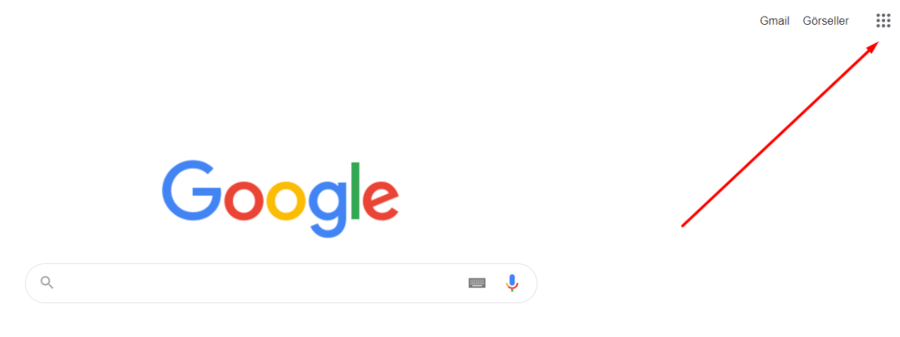
You can do the same from Google Drive: open the menu under the "New" button and choose Google Forms.
Building questions and answer types
Once a blank form is open, you can start entering the survey title, your questions, and the answer options.
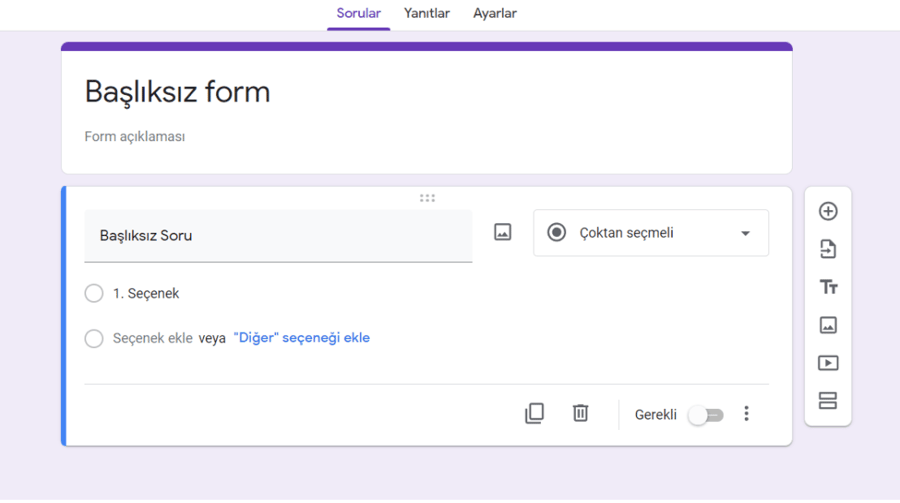
Answer types include multiple choice, dropdown menus, checkboxes, linear scales, dates, and file uploads. You can attach images to answer choices and use conditional logic to send respondents to different sections based on their answers. If more than one person is working on the form, share it through the "Add collaborators" option.
Appearance and settings
Once the questions are ready, you can shape how the survey looks. The theme options let you change the background color, theme color, font, and header image. Add-ons extend what the form can do. The preview option shows you exactly what a respondent will see before you publish.
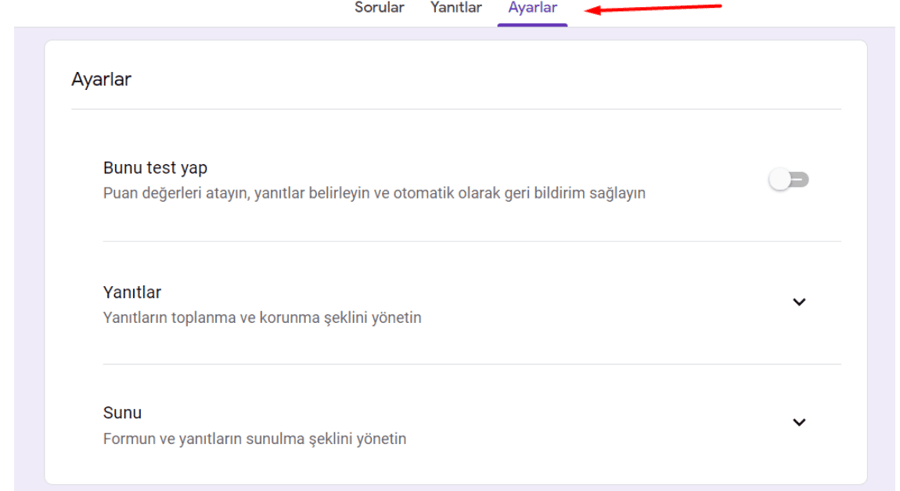
From the settings section you manage options such as collecting email addresses, showing a progress bar, limiting responses, and assigning point values to questions.
Sharing and analysis
When the form is finished, use the "Send" option to publish it by email, link, embed code, or social media. You can review the responses you collect under the "Responses" tab with summary charts, or export the raw data to a spreadsheet for deeper analysis. If you are collecting personal data, include a privacy notice and use the data only for the purpose you stated.
How do you write an effective survey?


An effective survey respects the respondent's time and serves a single decision. These principles raise both response rate and data quality:
- Carry your brand. A survey represents your business like every other material you put in front of a customer. Add your logo and pick a background color consistent with your identity. Good design affects completion rate, not just first impressions.
- Balance open and closed questions. Yes/no questions are easier for respondents but yield little detail. Where you need substance, such as a customer's experience on your website, open-ended questions give the more reliable answer.
- Avoid leading questions. "How satisfied were you with our service" assumes satisfaction. Use a neutral construction instead.
- Keep the question count down. Abandonment climbs on long surveys. Write down which decision each question feeds, then cut the ones with no answer.
- Put demographic questions last. Personal details asked up front increase drop-off.
To clarify who you should be asking in the first place, start with how to define your target audience.
What are the paid research alternatives?
If you need data from a representative audience, paid research panels are the answer. These tools fill the space Google Surveys left: they supply respondents from their own panels and let you define demographic breakdowns. Widely used options include SurveyMonkey, Qualtrics, Typeform, and Pollfish. If your goal is measuring how brand awareness shifts because of an ad campaign, the brand lift solutions inside Google Ads are the more accurate instrument.
Three questions settle the choice: are you bringing the audience or buying it from a panel, do you need a representative sample, and where will the data be analyzed. The answers point to the tool on their own.
How is survey data used for content and search visibility?
Survey data is one of the most dependable sources of original content. SI-powered search engines favor sources that stand apart from the commodity middle and rest on first-hand data. An article written from data you collected from your own audience is stronger than general knowledge everyone repeats, for exactly that reason.
The approach the Webtures team applies for enterprise brands runs in this order: collect real customer questions through a survey, turn those questions into content headings, write an opening sentence under each heading that answers directly, and refresh the results on a schedule. This raises the odds of being cited in classic search results and in SI-generated answers alike.
To go further, see content optimization for SI-powered search engines and the five golden rules of GEO-ready content. If you want to build a content program that turns survey data into search visibility, get in touch with the Webtures team.
Growth & GEO